
Write the scene into motion
Describe the subject, setting, and action in text-to-video mode. Add how the camera moves and what changes over the shot.
Start with a scene in words or an image you love. Direct the action, set the camera, and create a clip with Veo, Seedance, or Wan in one workspace.
Text to video · image to video
Build a shot from a written brief, or use an image to set the opening frame. Add a clear action and camera direction to shape the clip.
Describe the subject, setting, and action in text-to-video mode. Add how the camera moves and what changes over the shot.
Upload a product image, portrait, or concept frame in a supported image-to-video mode, then describe the movement around it.
Begin with Veo 3.1 Lite or choose from Seedance and Wan models. Available input modes, durations, and resolutions vary by model.
Choose from the selected model’s aspect ratios, durations, and resolution options to fit the clip you are planning.
Plan your next clip
Use these visual boards to plan a focused video brief: who is in the frame, what happens, and how the camera sees it.
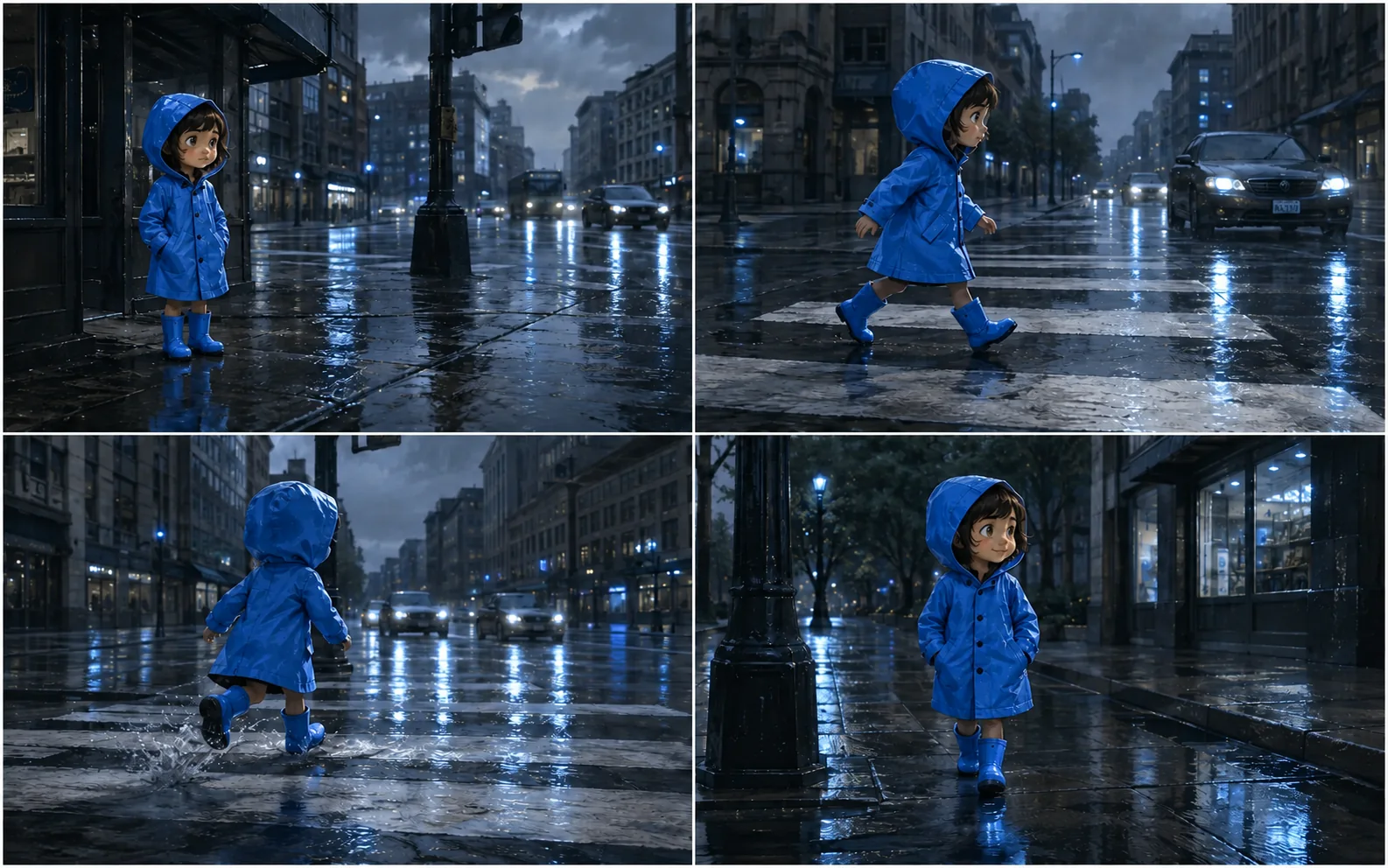
Give each clip one clear beat: an arrival, a reaction, or a change in the environment.
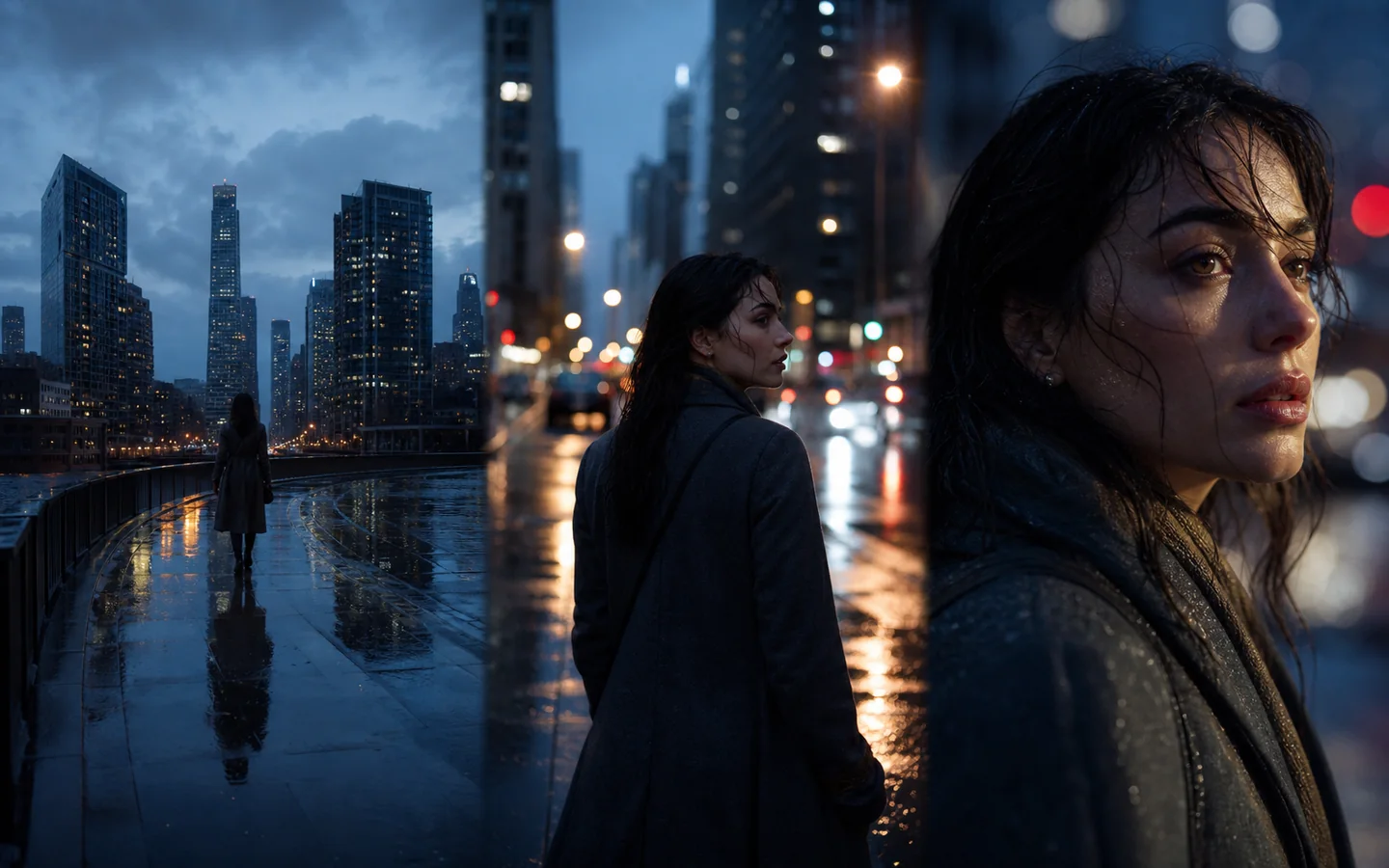
Start with a portrait and describe a glance, a turn, or another small gesture with a clear camera angle.
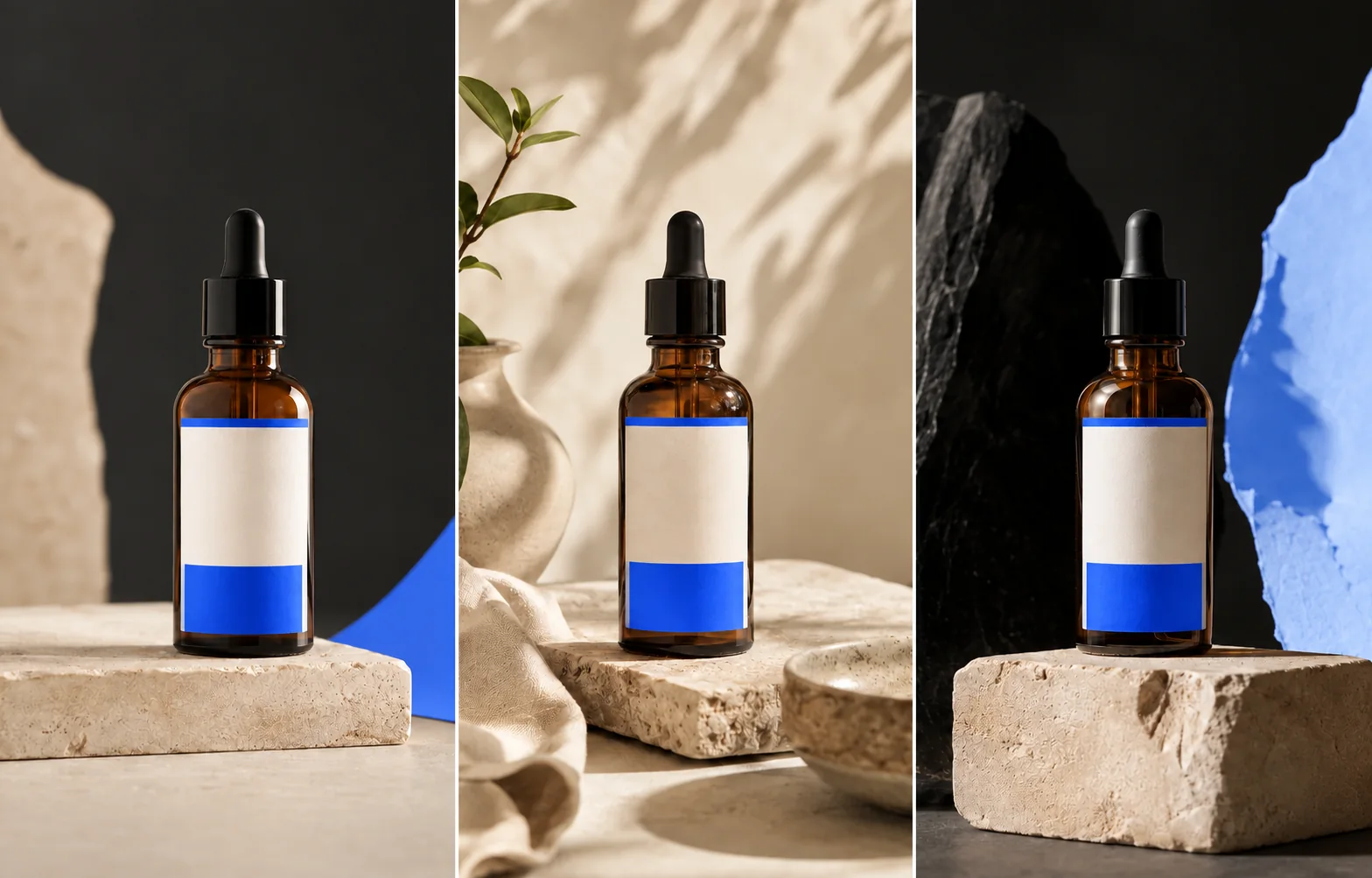
Use a slow push-in, a gentle orbit, or a light change to build a short product presentation.
How it works
A focused scene and a clear motion brief give you a useful starting point for your first clip.
01
Use text-to-video for a new scene, or select an image-to-video mode and upload a starting frame.
02
Say what moves, how fast it moves, and how the camera follows. Include the details you want to preserve.
03
Select a video model and its available duration, aspect ratio, and resolution. Check the displayed credit cost.
04
Sign in to generate with your credits. Play the result, then refine the action or framing for the next version.
Direct the shot
A video prompt needs more than a description of a still. Name the action, the camera move, and the rhythm of the shot.
Product film prompt
An 8-second product film using the amber serum bottle image as the opening frame. The bottle stands upright on a cobalt-blue plinth. The camera slowly pushes from a medium shot to a close-up as soft reflections move across the glass. Keep the label facing the camera. One continuous shot, no cuts. Horizontal 16:9 composition.
Starting frame
Describe the scene or explain the role of your uploaded image.
Subject action
Choose one main movement and say how it develops.
Camera direction
Specify a fixed view, push-in, orbit, or tracking shot.
Pace & continuity
Set the rhythm and identify details to carry through the clip.
AI video generator FAQ
Answers about text prompts, starting frames, video settings, and credits.
Yes. Select a model that supports text-to-video, write a scene and motion brief, then choose its available settings.
Yes. Choose a supported image-to-video mode, upload your image, and describe the action and camera movement you want.
This page opens with Veo 3.1 Lite. The model menu also offers other Veo variants, Seedance models, and Wan models, including Wan 3.0 options.
The selected model determines which durations, aspect ratios, and resolutions are available. Check the workspace controls before generating; options can also vary by input mode.
Focus on one scene and one main action. Describe the subject, camera movement, pace, and details to preserve. After watching the result, adjust one part of the brief at a time.
You need to sign in and have enough credits to generate. The cost depends on the model and settings and appears in the workspace. Daily check-in rewards can add credits; downloading generated videos requires a paid plan.
Make the first shot
Bring a scene, a starting frame, and a motion brief. Your video workspace is ready above.