
Turn a brief into an image
Describe the subject, setting, style, and light. Build product visuals, illustrations, or concept art from a text prompt.
Describe a product shot, sketch a new world, or rework a photo. Create and edit with GPT Image and Nano Banana models, all in one workspace.
Create · reference · refine
Start with words when you need a new direction. Bring in a reference when you already know the subject, look, or layout you want to explore.
Describe the subject, setting, style, and light. Build product visuals, illustrations, or concept art from a text prompt.
Upload a photo or sketch in image-to-image mode. Tell the model which details to keep and which parts to change.
Start with GPT Image 2.5 or explore GPT Image 2 and the Nano Banana family. Compare different approaches to the same brief.
Set the aspect ratio and an available resolution before generating. Make a square post, a portrait campaign, or a wide storyboard frame.
What you can make
Explore three creative directions: a campaign built around one product, a sequence of story frames, and a new take on an existing design.
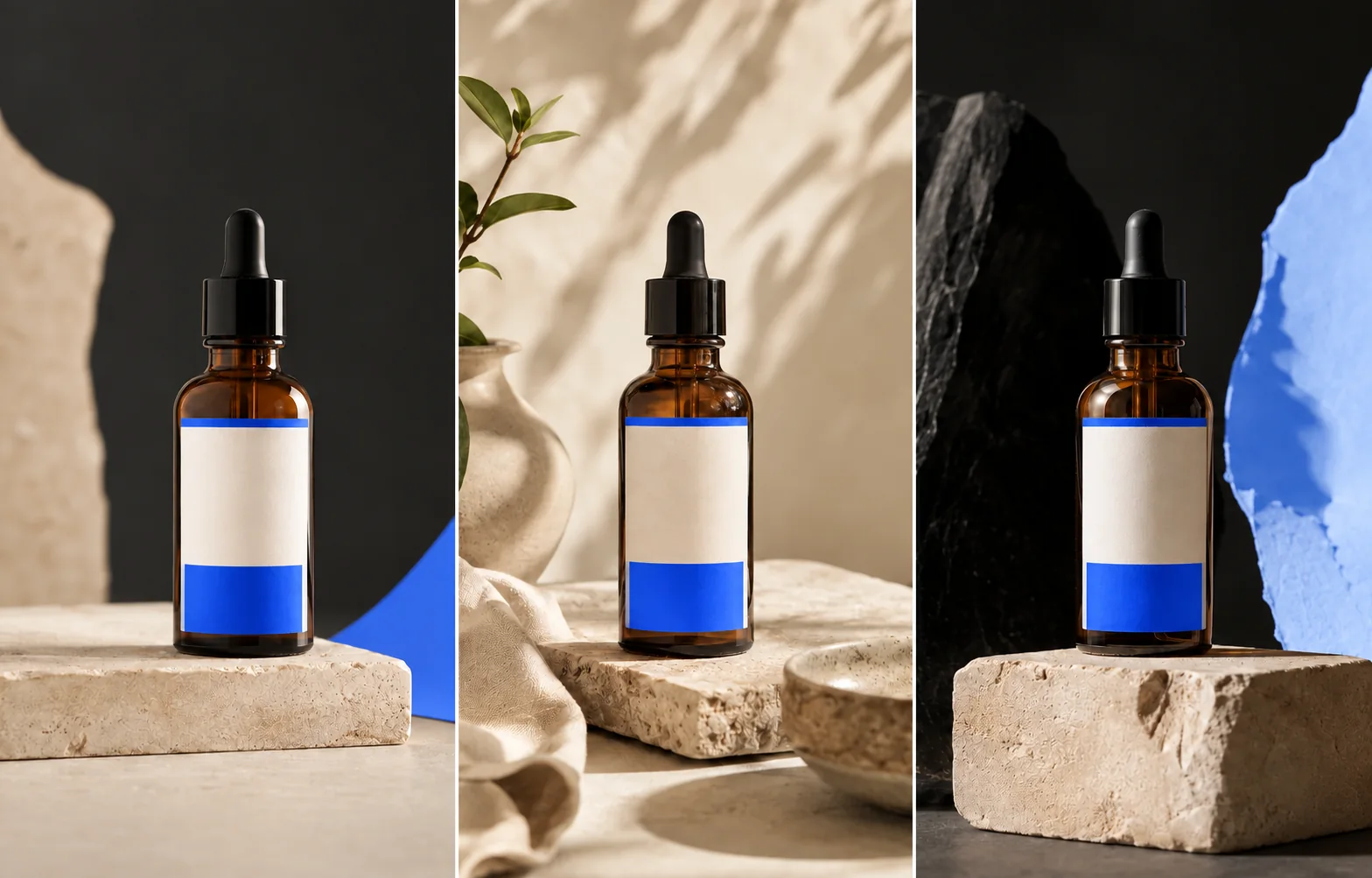
Use a product reference to explore lighting, backgrounds, and compositions for your next campaign.
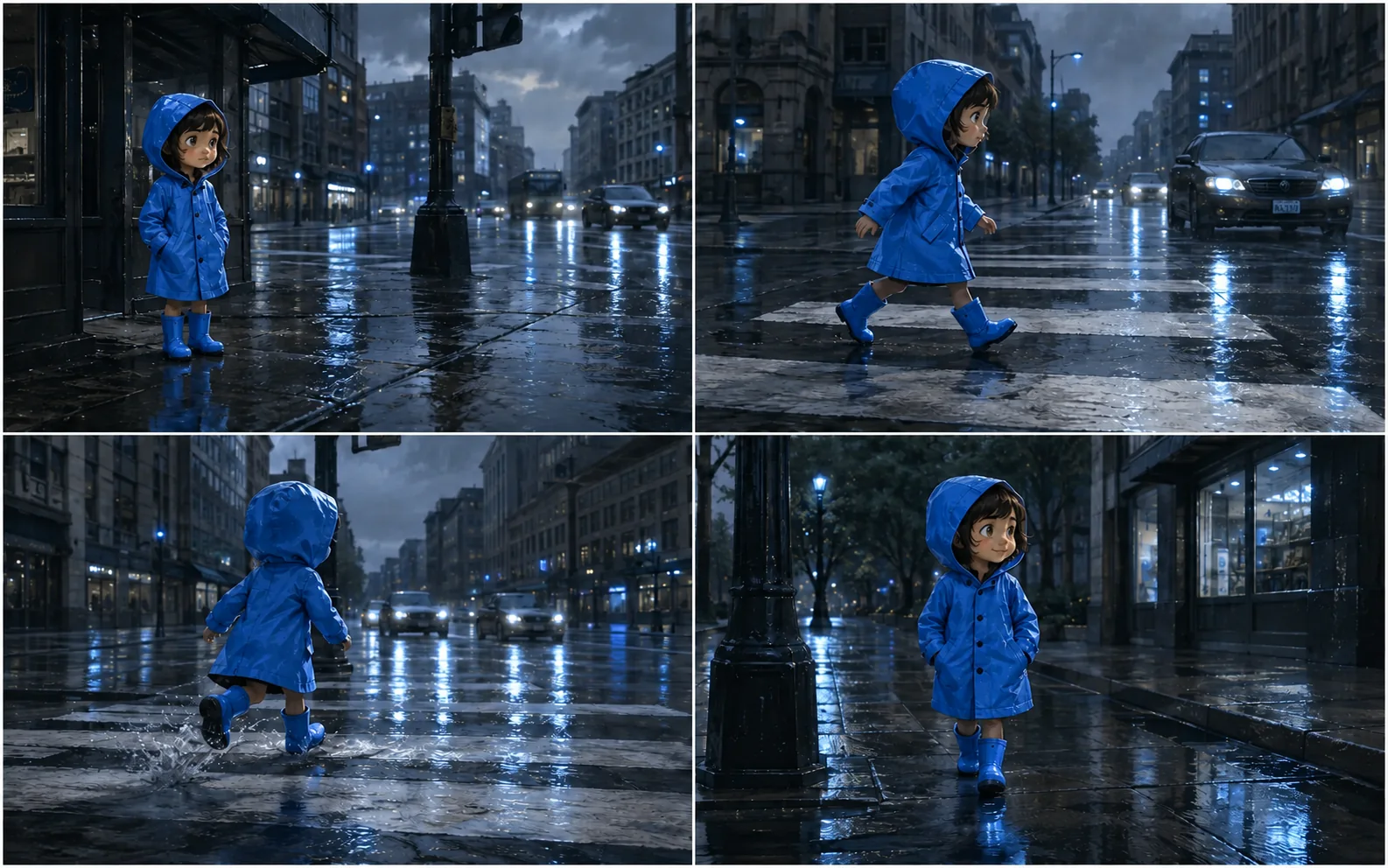
Describe the character, location, and mood, then develop a visual direction for each scene.
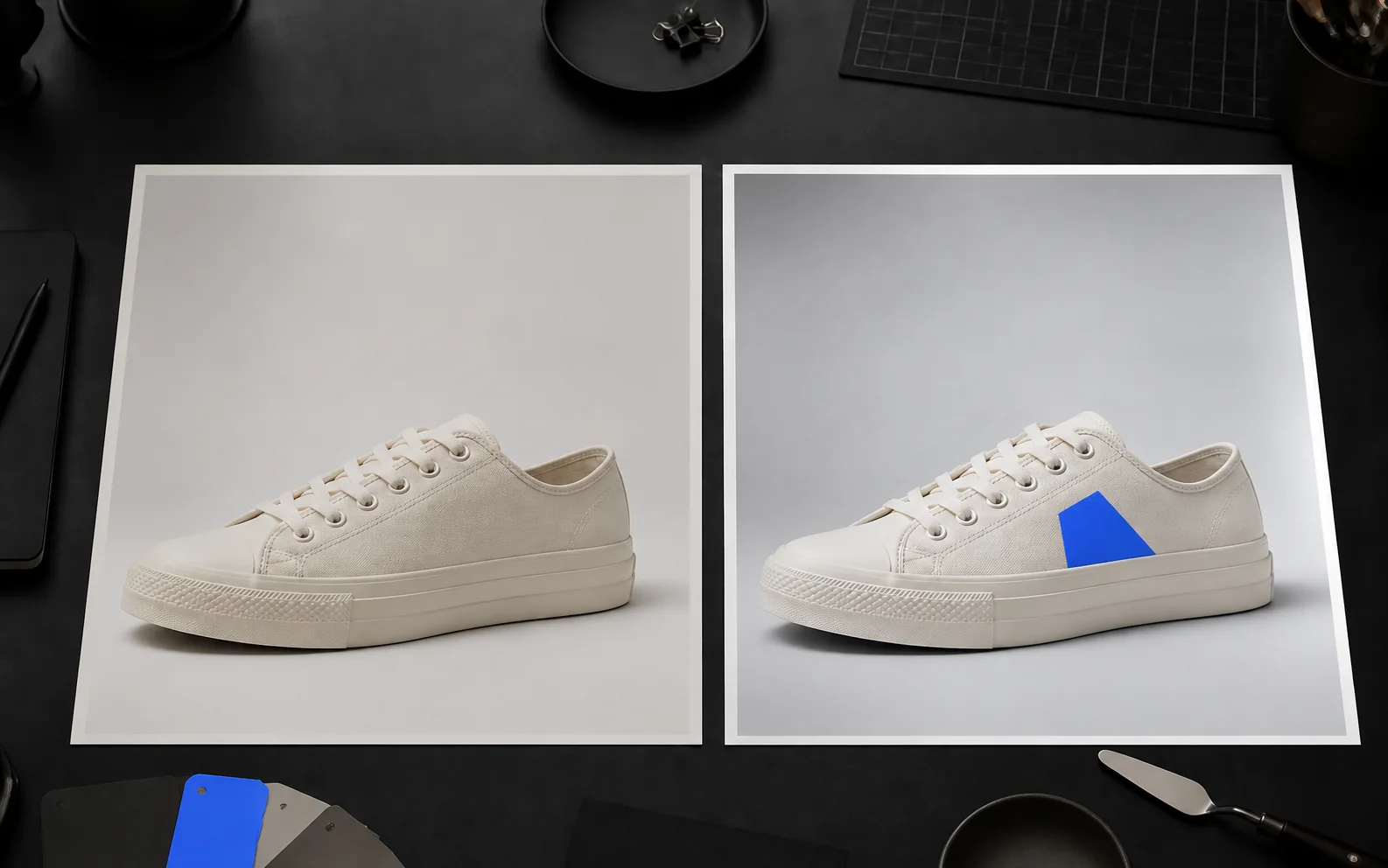
Try a different color, material, or setting. Specify the details you want to carry into the new image.
How it works
Write the idea, choose your settings, and generate. Each result gives you something concrete to refine.
01
Name the subject and the intended use. Add the composition, style, lighting, and any text you want in the scene.
02
For image-to-image creation, upload a photo or sketch and explain what it should guide.
03
Choose an image model, aspect ratio, and available resolution. Check the credit cost shown before generating.
04
Sign in to generate with your credits. Review the result and use it as a reference for a more focused revision.
A better starting prompt
A useful prompt tells the model what to show and how to frame it. If you upload a reference, give it a clear role.
Product photo prompt
Create a studio product photo of the amber serum bottle in the reference. Place it on a cobalt-blue plinth against a clean blue background. Use soft side lighting and realistic reflections on the glass. Keep the bottle silhouette and label placement; leave space on the left for a headline. Vertical 4:5 composition.
Subject
Name the main object and the details that define it.
Composition
Explain the camera angle, framing, and space for copy.
Look & light
Choose a palette, style, materials, and light direction.
Reference role
Say what to preserve and what you want to change.
AI image generator FAQ
Answers about prompts, references, formats, and credits.
Choose an image model, write a prompt, and set the format. The model generates a new image from your description and any references you add.
Yes. Choose text-to-image mode and describe the subject, scene, style, and lighting. You do not need a reference image.
Yes. Use image-to-image mode with a supported model, upload your photo, and describe the changes. Available file types and reference limits are shown in the workspace.
This page starts with GPT Image 2.5. The model menu also includes GPT Image 2, Nano Banana 2, Nano Banana 2 Lite, Nano Banana Pro, and other available image options.
Aspect ratios and resolutions depend on the selected model. The workspace shows the options it supports, so you can choose a format for social posts, product pages, or wider compositions.
You need to sign in and have enough credits to generate. The workspace displays the cost for your settings. Daily check-in rewards can add credits; downloading generated images requires a paid plan.
Make the first version
Write a brief or bring a reference. Choose your image model and start creating right here.