
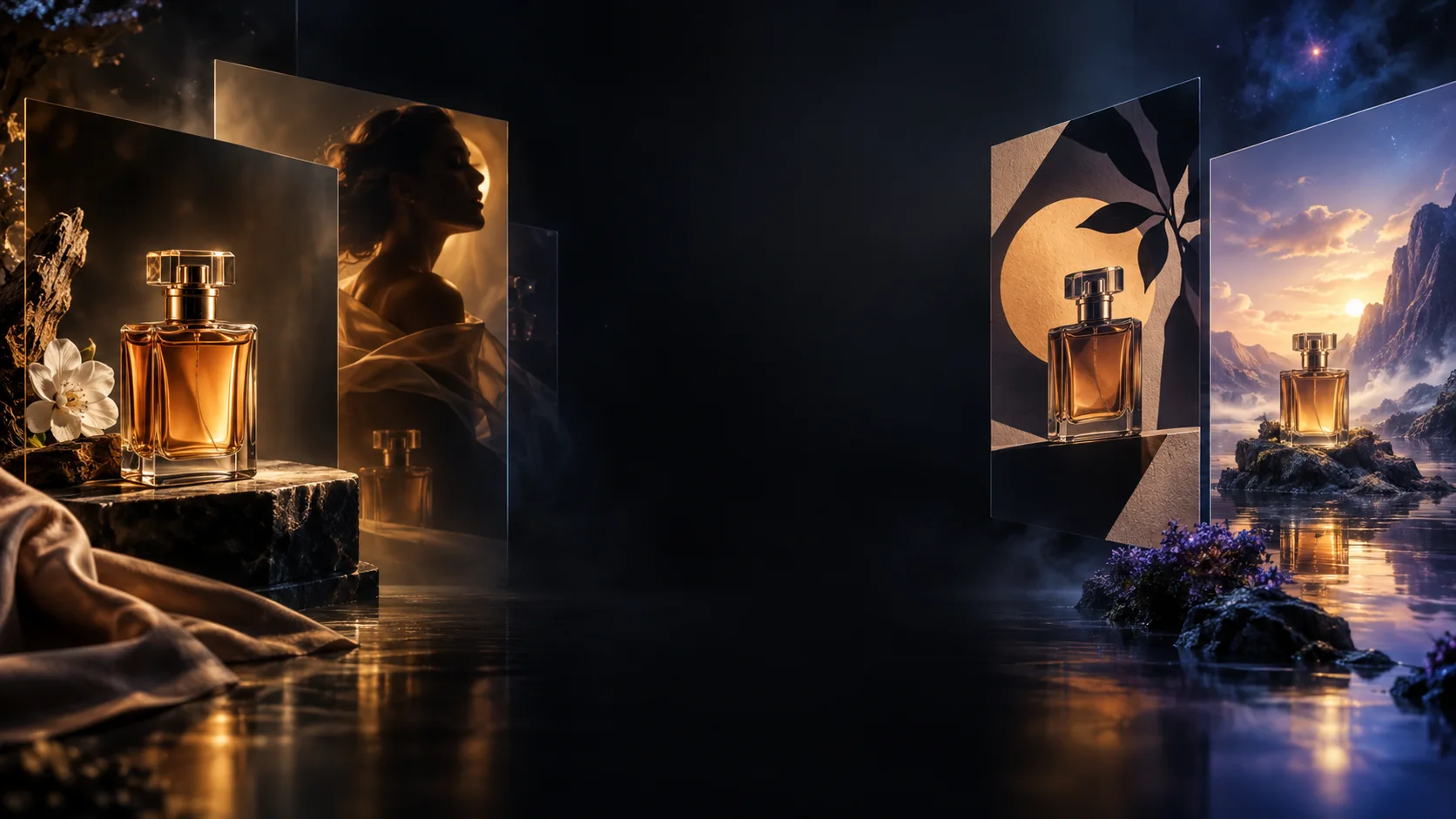
Make the main view easy to read
Describe the full silhouette, viewing angle and background. Leave enough margin around the product so a square crop does not cut off handles, caps or edges.
Give every product image a job. Explore GPT image 2.6 prompt ideas for a clean listing photo, a useful lifestyle scene and a closer look at the details. Build your shot list, then choose a model in Image 2 to begin.
Plan your GPT image 2.6 product brief
A product gallery needs more than several attractive variations. Decide which picture explains the shape, which shows the context and which makes a small detail easier to inspect.
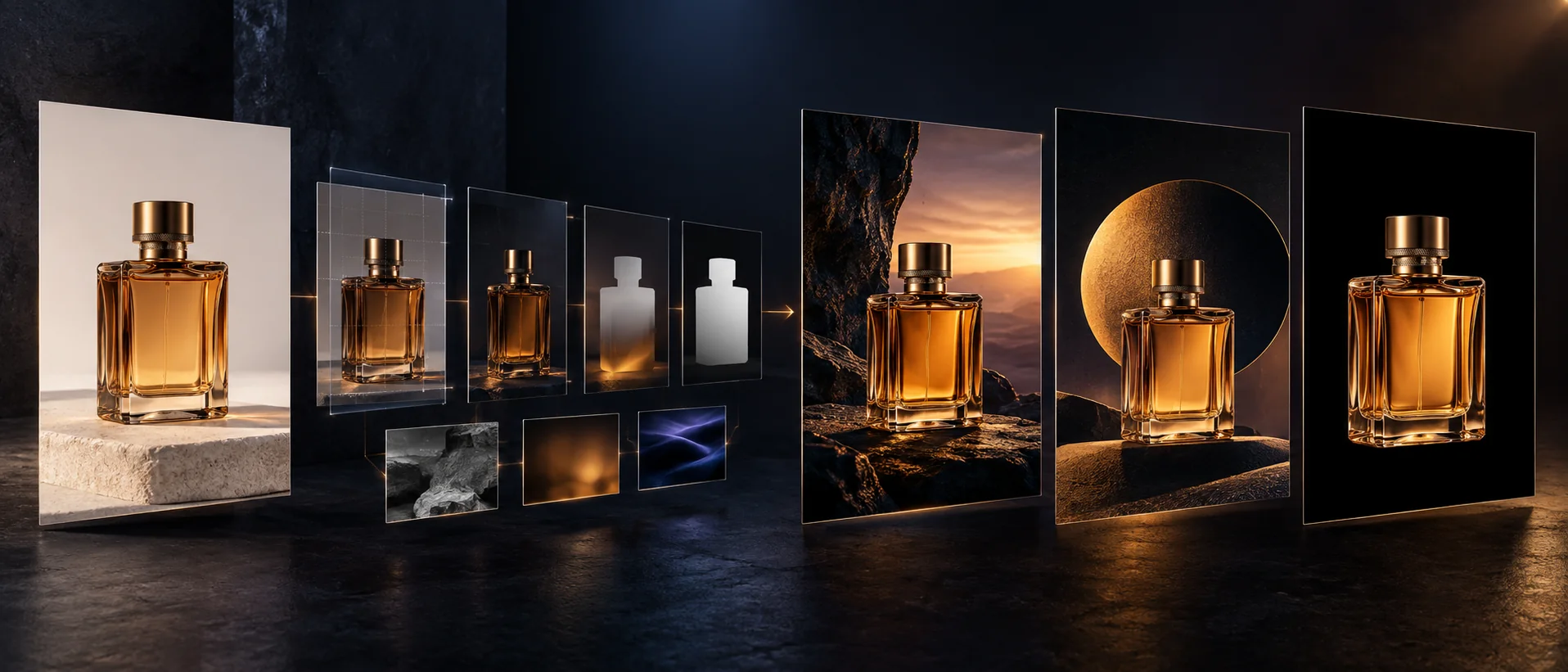
Use these visual references to plan the roles of your own product images.
Describe the full silhouette, viewing angle and background. Leave enough margin around the product so a square crop does not cut off handles, caps or edges.
Supply the actual color, material and visible features. Compare the result with your product reference before using an image in a listing.
Use a scene to explain context or a closer view to show a finish. List the feature that each supporting image should help someone understand.
Place the selected images together. Check product identity, background tone, framing and scale, then note any mismatch that needs another pass.
GPT image 2.6 ecommerce prompt ideas
Start with the questions a customer may ask before buying, and turn each answer into a separate image brief.
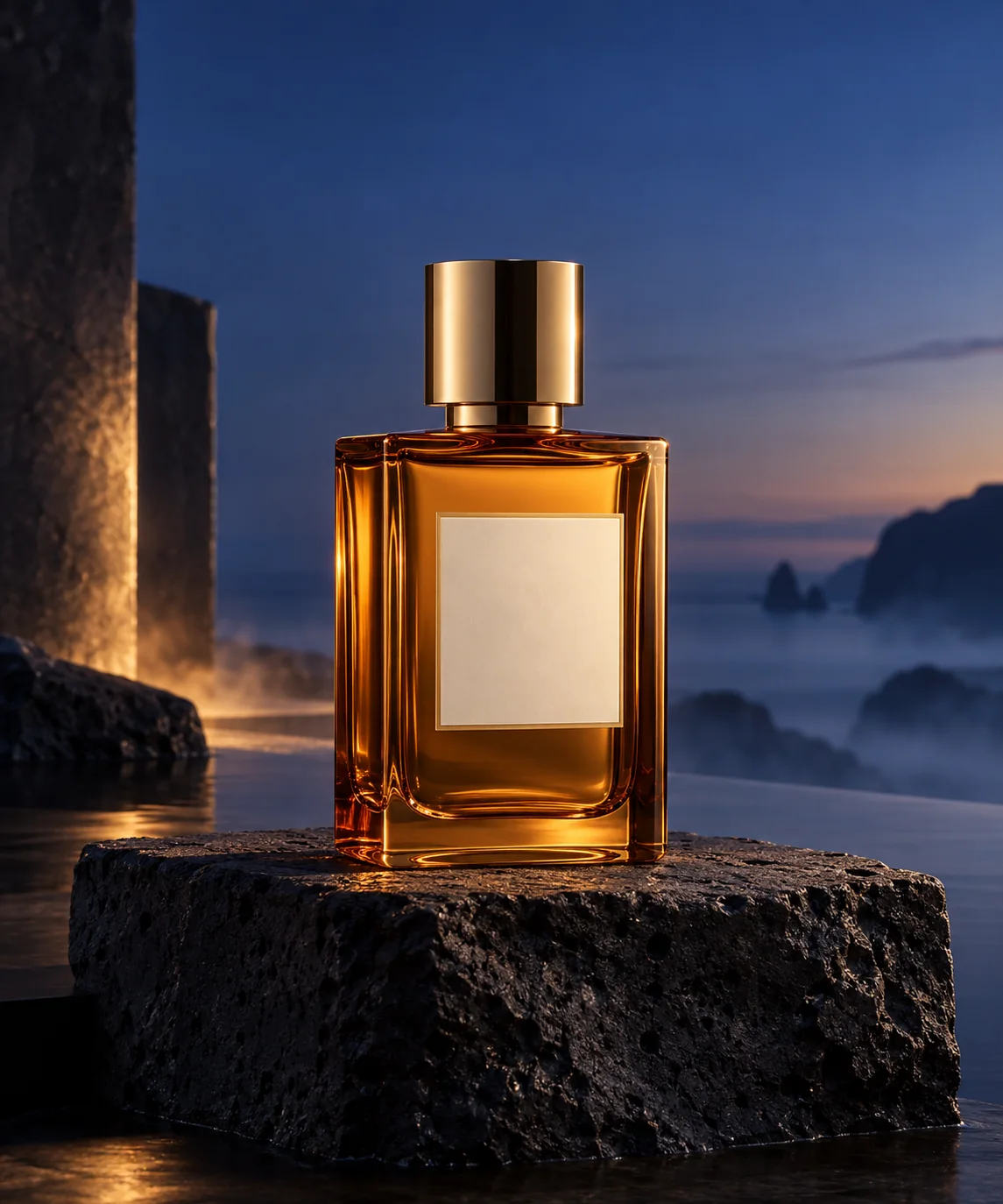
Request one product, a clear angle and an uncluttered background. Include the visible parts that identify the item, and check that the result does not add accessories that are not included.

Describe where the item belongs and how much of the scene should be visible. Keep the product prominent, with space for copy that can be added in your page layout.
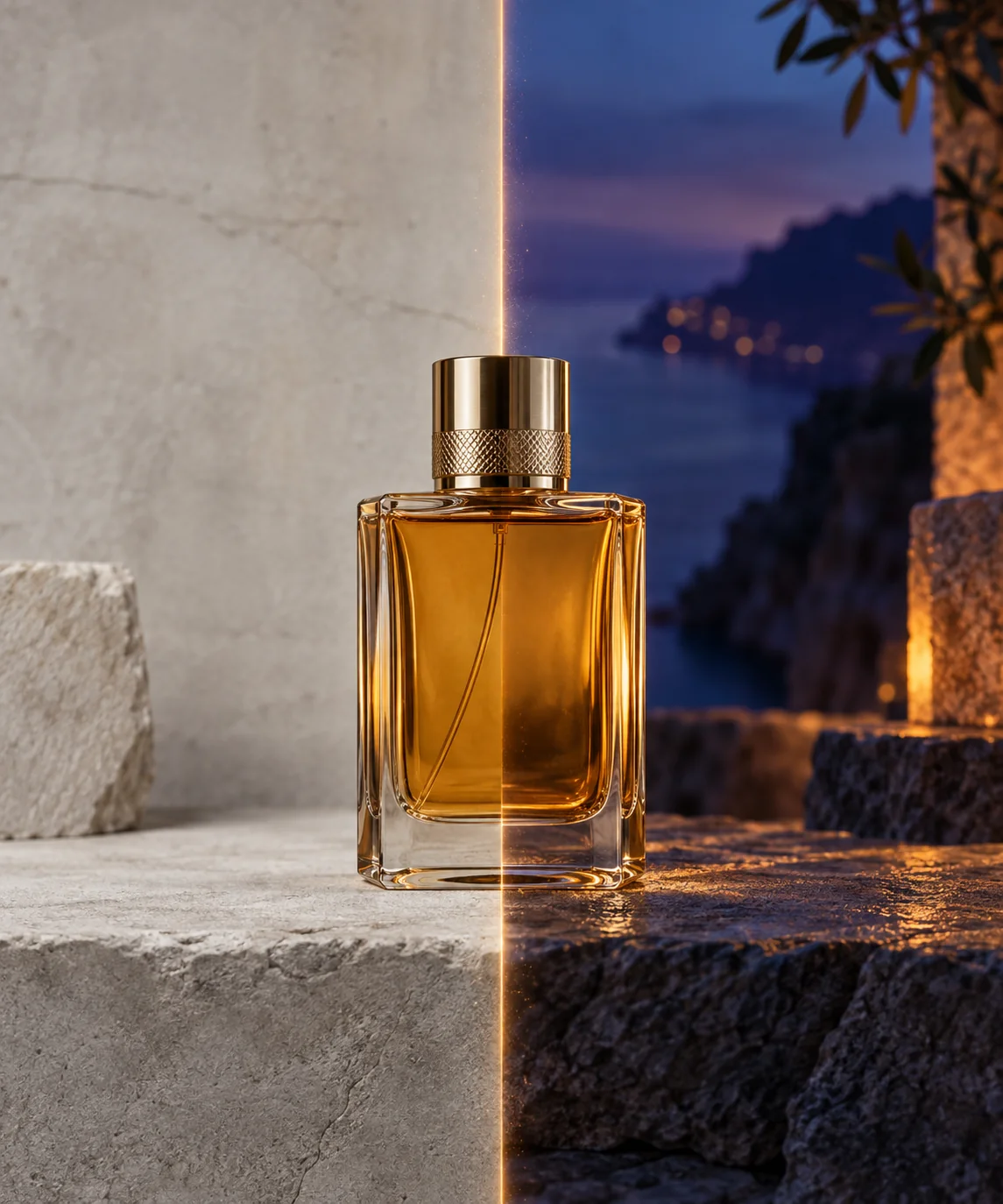
Write a close-up or revision brief around a seam, surface or component. Use the real product as your reference and inspect the result for altered construction or invented details.
From shot list to product gallery
Keep a short checklist beside the Image 2 workspace so every generation has a specific role.
01
List the main product view, one contextual scene and any detail shot you need. Name the intended placement and framing for each.
02
Use clear images of the actual item when the selected model supports references. Note which image shows the color, shape or feature you want to retain.
03
Select a model, review its controls and adapt the prompt to the current shot. Check the displayed credit total before submitting.
04
Compare the output with the item you sell. Review proportions, components, labels, cropping and background, then keep the images that match the brief.
GPT image 2.6 product prompt example
This backpack example separates the product facts from the photographic treatment. Replace both with details that match your own listing.
Travel backpack: main listing photograph
PLACEMENT: A square main image for an online product listing. PRODUCT: One navy canvas travel backpack. Show the top handle, two shoulder straps and front zipper. Use the actual product reference for construction and proportions when reference input is available. VIEW: A front three-quarter angle with the entire bag visible. Center it with equal margins and a light gray studio background. LIGHT: Soft light from the left, gentle fabric texture and a natural contact shadow beneath the bag. CHECKS: No props, extra straps, invented pockets, added lettering or watermark. Compare all visible parts with the real item before using the image.
Use observable product facts
Describe visible construction, color and finish. Leave unsupported material or performance claims out of the image brief.
Specify the full frame
State the angle, margins and parts that must stay inside the crop, including handles and accessories that belong to the item.
Separate scene from specification
Change the background or lighting in a new version while repeating the product details that must still match.
Keep an inspection list
Compare zippers, seams, labels and proportions against your reference instead of approving an image on style alone.
Choose the next product shot
The right next image depends on what the current product page still leaves unclear.
Plan a simple main view with a clear silhouette and full framing. Remove props that compete with the item and choose a useful camera angle.
Draft a listing imageWrite a supporting scene around the item’s intended setting. Define the surroundings without implying features the product does not have.
Plan a supporting sceneUse the prompt checklist to describe the exact correction. If the chosen model accepts references, supply the original and list the parts to preserve.
Write a focused correctionGPT image 2.6 product image FAQ
Prepare practical product briefs and make deliberate choices in the Image 2 workspace.
Name the product and the image’s role first. Add the viewing angle, background, light and framing, then list the visible parts that must match the real item. Use a separate brief for each shot in the gallery.
Start with a clear view of the actual item, enough margin to show its full outline and a background that does not distract. Check the image requirements of the storefront where you plan to publish.
Describe the setting, camera distance and product position. Explain what the surrounding objects contribute, and keep the scene consistent with the item’s real use and dimensions.
Replace the color description and provide a matching reference when supported. Review every result against that variant, including trim, stitching and accessories; changing one word is not a verification step.
The model name shown in Image 2’s workspace identifies the model used for your request. Check that selection and the available settings before submitting your product prompt.
Review the credit total displayed in the workspace for your selected model and settings. The Image 2 pricing page lists the plans and credit packages.
Build your product gallery in Image 2
Adapt a GPT image 2.6 product prompt to the item you sell, select a workspace model and work through one clear brief at a time.